
WhatsApp communication
WhatsApp on Belcoda lets you send automated, personalised messages to your entire contact list — and have real two-way conversations with each person individually. It connects directly to your organisation's WhatsApp Business account, so every message comes from a number your contacts recognise.
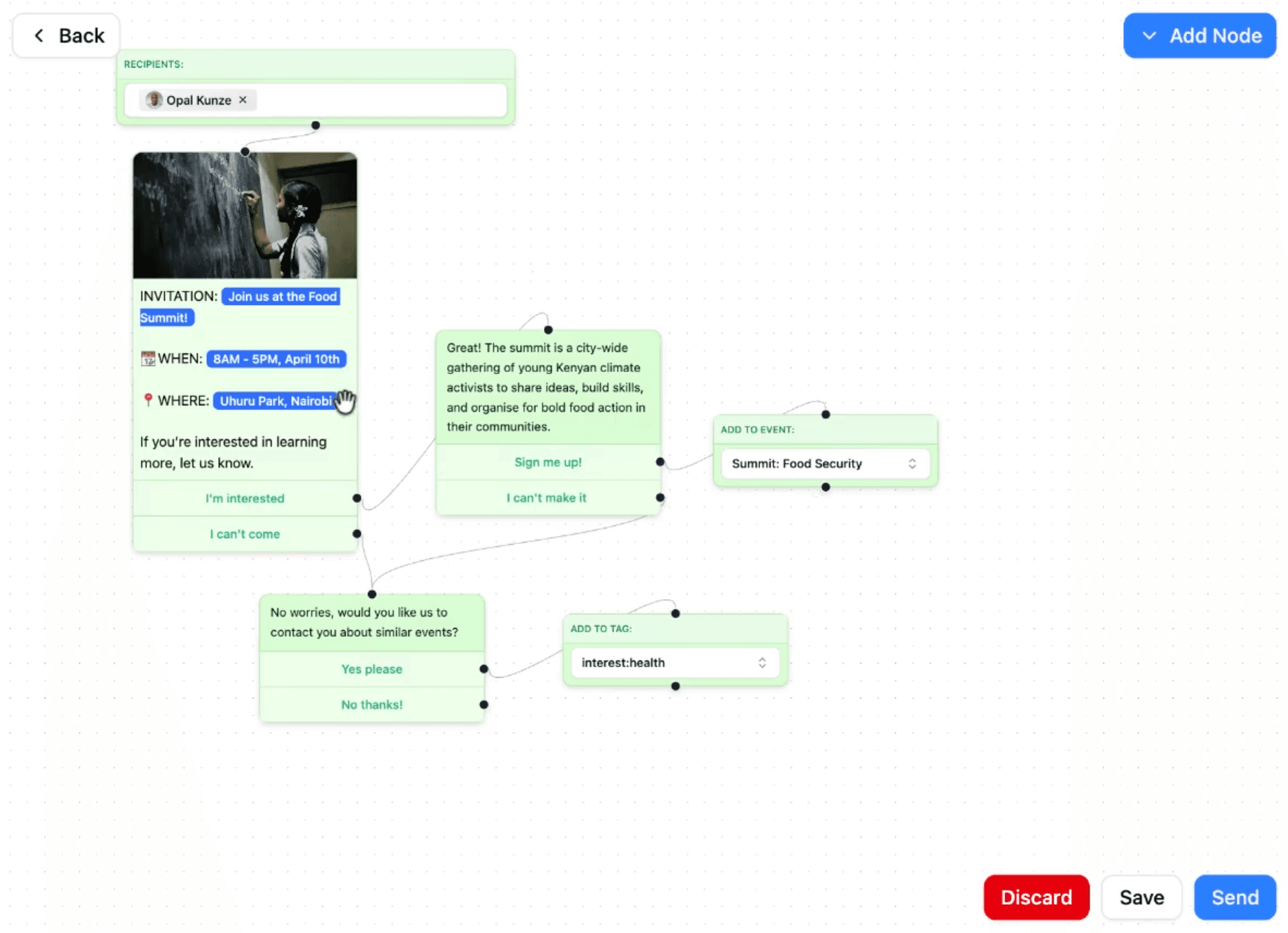
To Activate your WhatsApp, follow the steps in the “Start here” document.
Design and Automate WhatsApp threads or “flows”
Using a simple drag-and-drop editor, you can design and automate WhatsApp threads or “flows” via Belcoda. What does this mean?
It means you reach your entire contact list through WhatsApp automatically, and with real two-way conversation built in. Each person receives an individual message and can reply in their own time. Belcoda responds on their behalf based on a path you've set up in advance.
You can invite people to events, mobilise supporters for a petition, follow up with volunteers, or keep your community informed about urgent action opportunities.
With this feature, you can:
Send a message to one person, or hundreds, at once
Include images, dates, locations, and clear calls to action
Set up automatic responses based on how people reply
Tag contacts, add them to events, or route them to different follow-up messages depending on their answer
Let Belcoda handle the conversation while you focus on the work that matters
On a desktop computer:
On a mobile device:
Template Variables (for WhatsApp and email)
Template variables let you personalize outbound messages with information Belcoda already knows about the recipient, organization, and sender. Instead of writing a separate message for each person, insert a variable and Belcoda fills it in when the message is sent.
For example:
Hi {{person.given_name}}, thanks for supporting {{organization.name}}.
When the message is sent to Ada Lovelace from Belcoda, the recipient sees:
Hi Ada, thanks for supporting Belcoda.
When To Use Template Variables
Use template variables when part of a message should change for each recipient or sending context.
Good uses:
Greeting someone by name
Including the recipient's email address or phone number
Referring to the sending organization
Signing a message from the sender
Avoid variables when the text should be exactly the same for every recipient.
Available Variables
The variable picker shows the variables available in the current composer. The main variables are:
Variable | Meaning |
|---|---|
| Recipient's given name |
| Recipient's family name |
| Recipient's email address |
| Recipient's phone number |
| Organization name |
| Organization slug |
| Name of the user sending the message |
| Email address of the user sending the message |
Belcoda also has optional event and petition variable groups for contexts where those details are available:
Variable | Meaning |
|---|---|
| Event name |
| Event start date |
| Event location |
| Petition name |
| Petition signature goal |
Variable Format
Variables use double curly braces:
{{person.given_name}}
Keep the variable name exactly as inserted by the variable picker. Variable names are lowercase and use underscores, for example given_name.
Spaces inside the braces are accepted in email content, but the recommended format is without spaces:
{{person.given_name}}
How Variables Are Resolved
Belcoda resolves variables when a message is sent, not when the draft is written. This matters because one draft can be sent to many people, and each person gets their own values.
For example, one email draft can say:
Hi {{person.given_name}},
Ada receives:
Hi Ada,
Grace receives:
Hi Grace,
Missing Values
Some people may not have every field filled in. For example, a recipient may not have a given name.
Behavior depends on the channel:
In WhatsApp template parameters, use fallback text for variables that may be missing.
In email subject and body content, missing values are rendered as empty text when the variable is known for that recipient.
For greetings, write the surrounding sentence so it still reads well if a value is missing, or use WhatsApp fallback text where available.
Unknown Variables
If a token does not match a supported Belcoda variable, Belcoda leaves it unchanged instead of deleting it. For example:
{{custom.nickname}}
This helps prevent accidental data loss when someone types an unsupported variable.
Privacy
Variables are resolved by Belcoda at send time using the recipient data already available to the sending workflow. Do not use template variables to expose sensitive data unless the message is intended to include it.
Before sending to a large audience, send a test message or review the draft with a small recipient set.